
In this guide we will show you how to install Dtech TV. First, start your device and go to the home screen. From the main menu scroll to the right and select the Find tab.
Step 1: Select the Search icon.
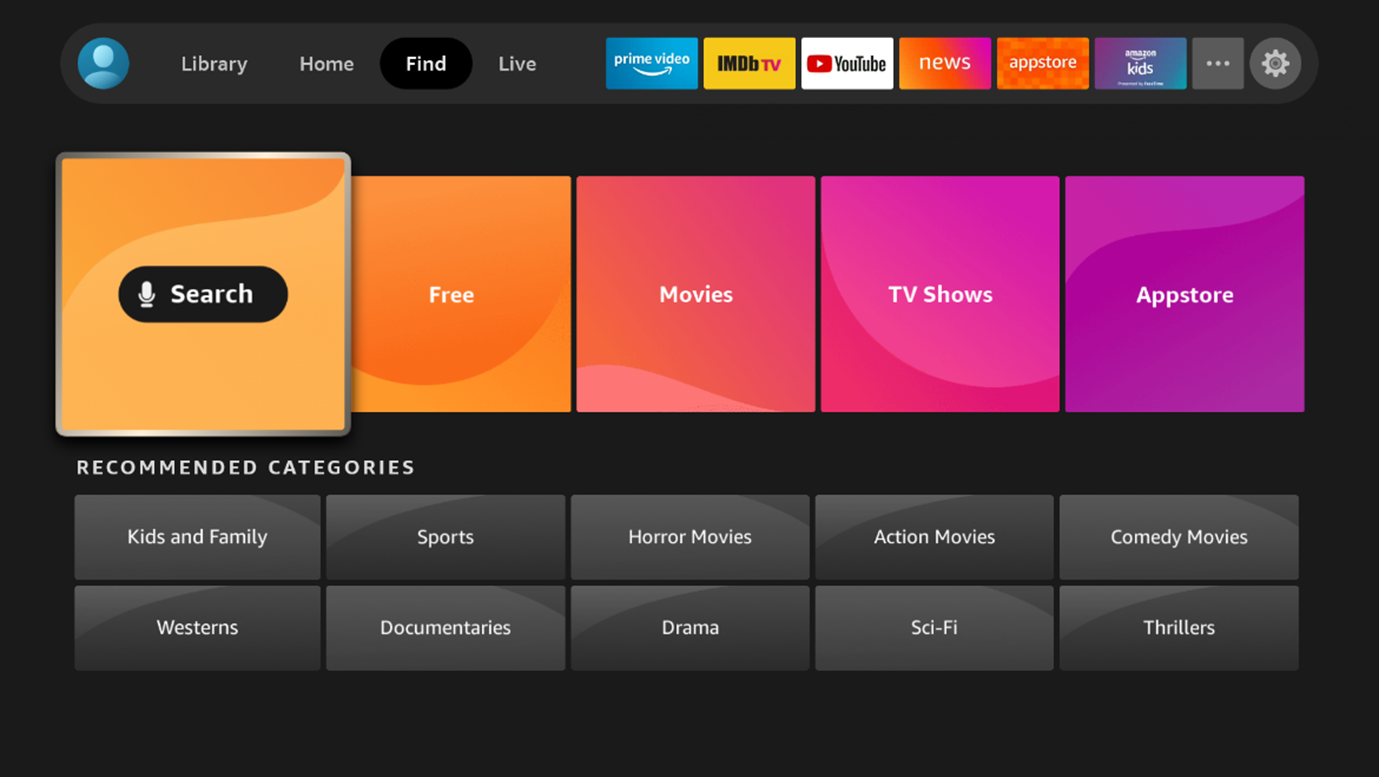
Step 2: Type in Downloader.

Step 3: Select the Downloader app

Step 4: Select Download
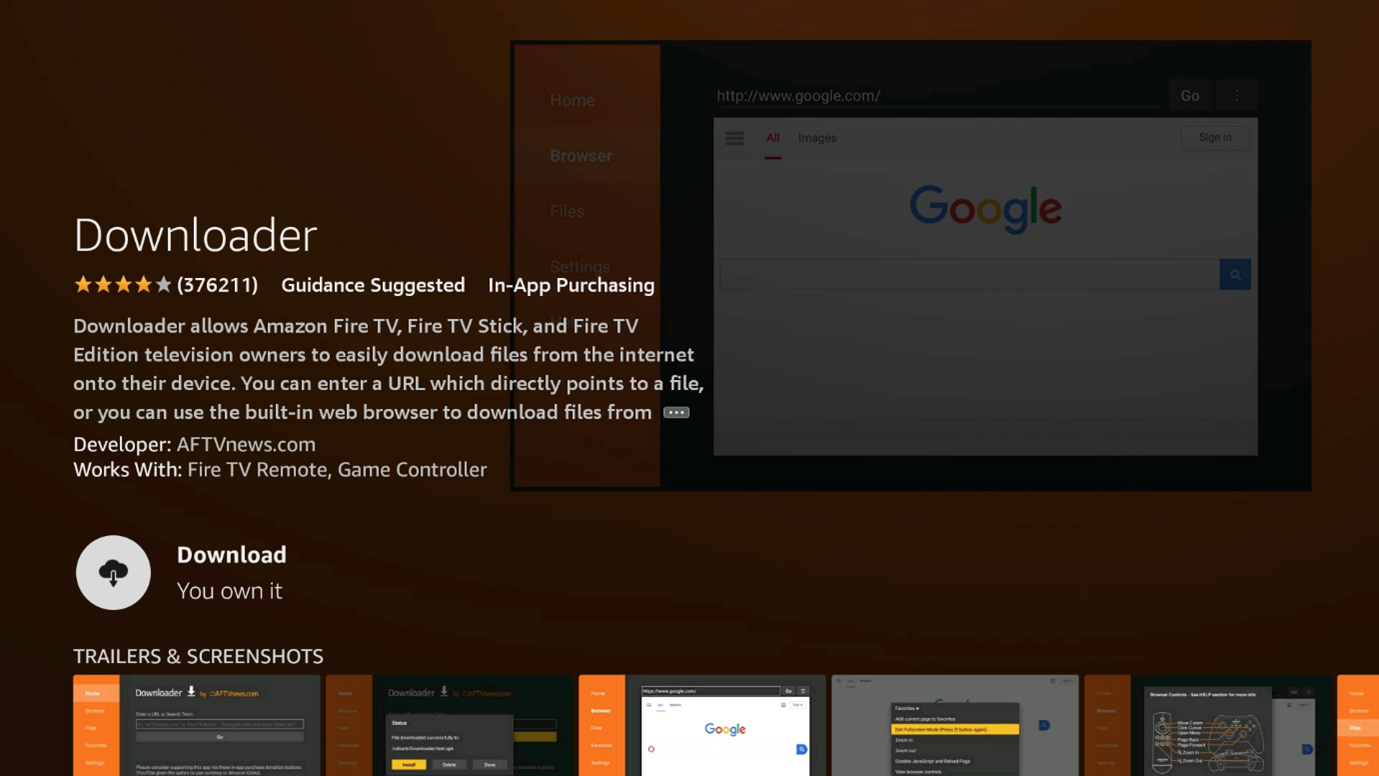
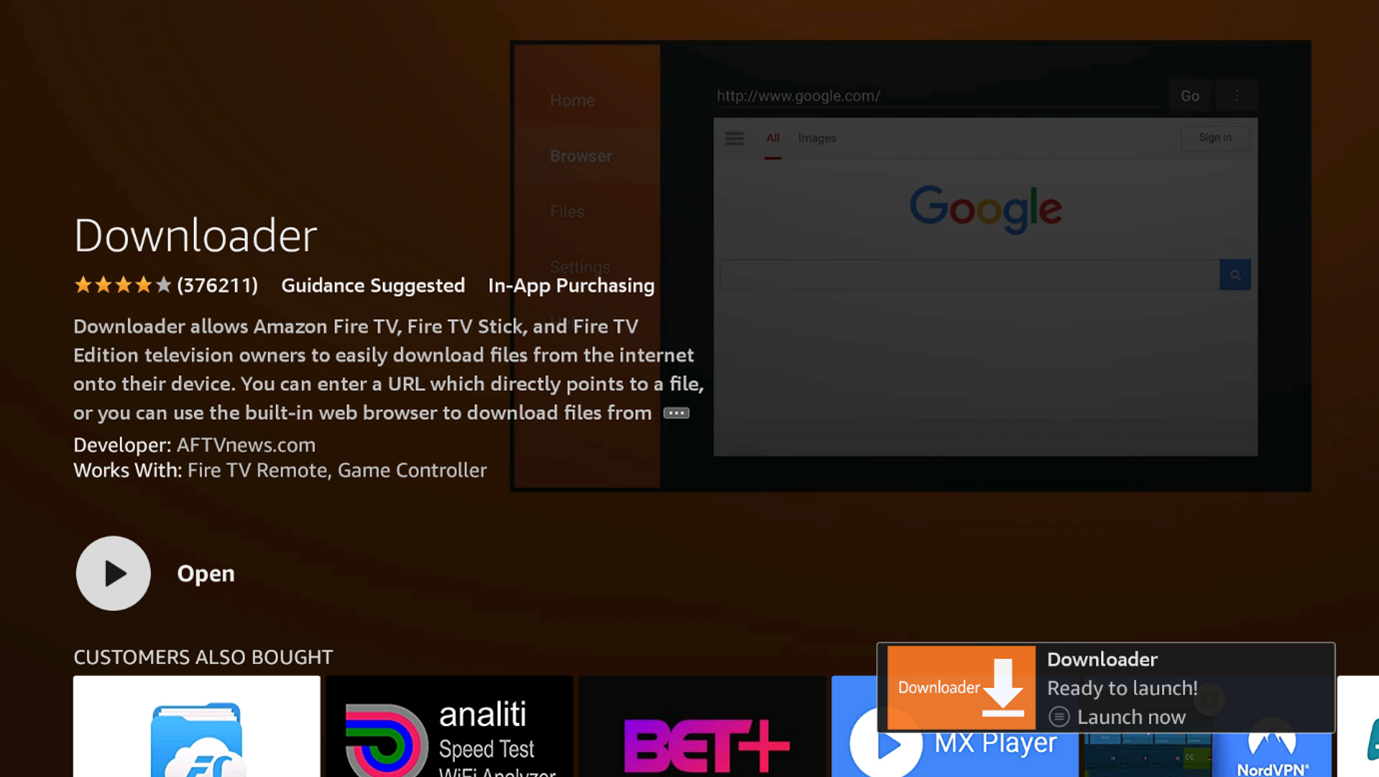
Step 5: Select Open
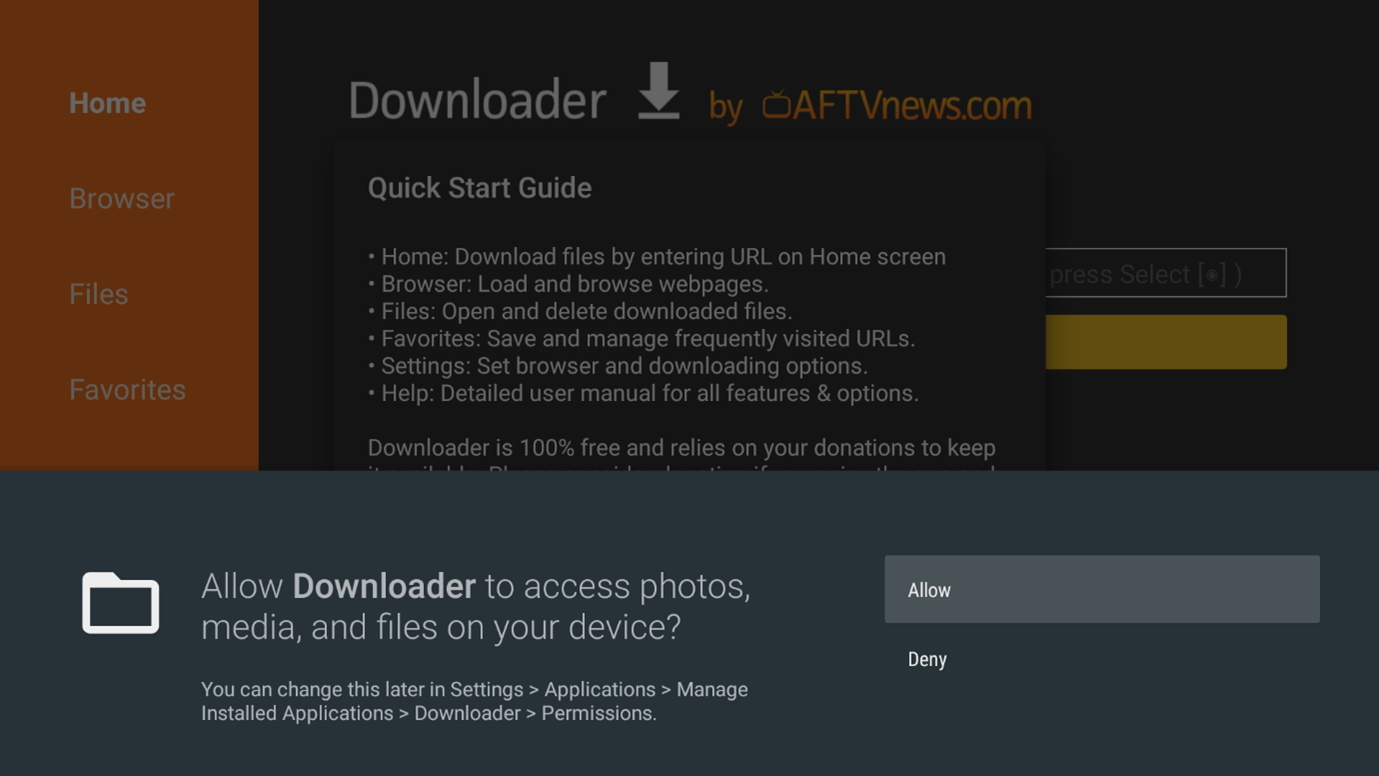
Step 6: Select Allow when prompted
Step 7: Select OK
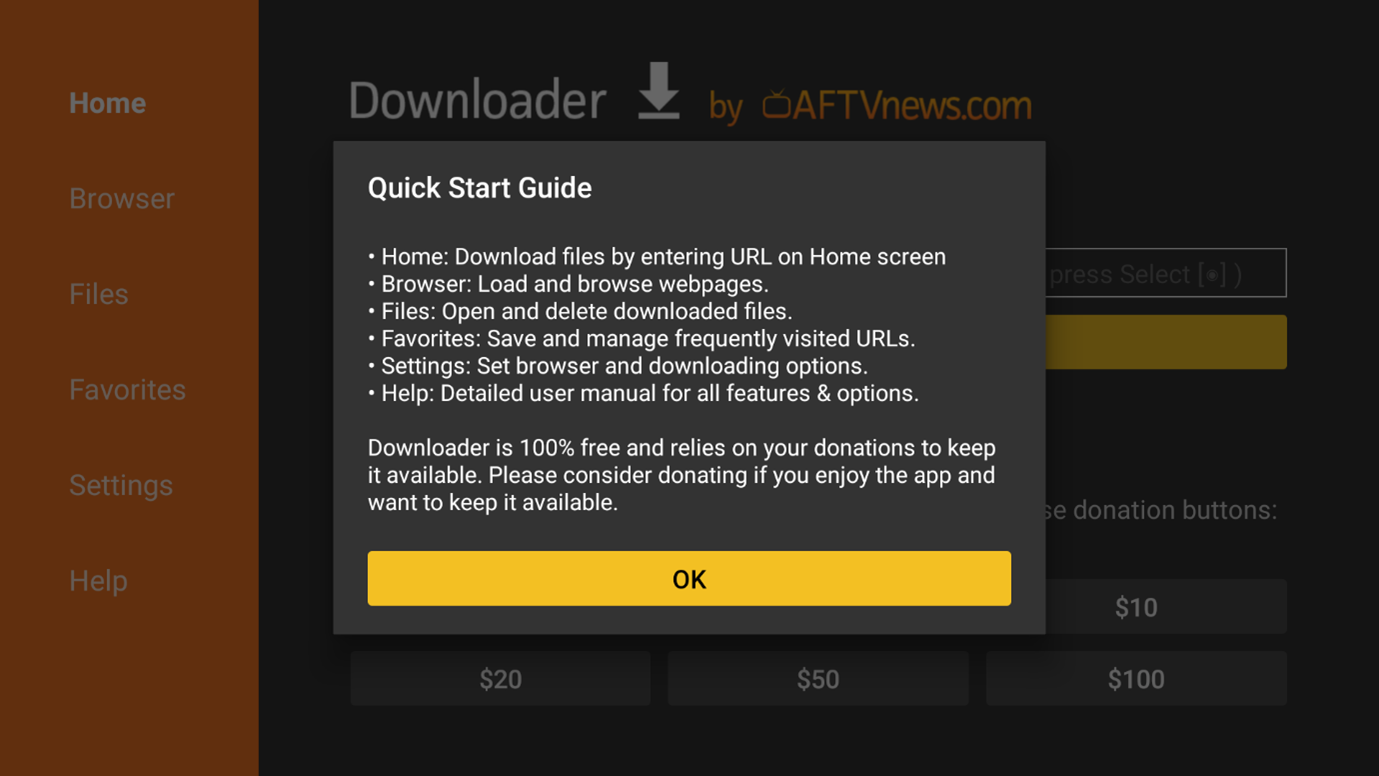
Step 8: Enter link http://apg.ooo/sstv.apk and then select GO button

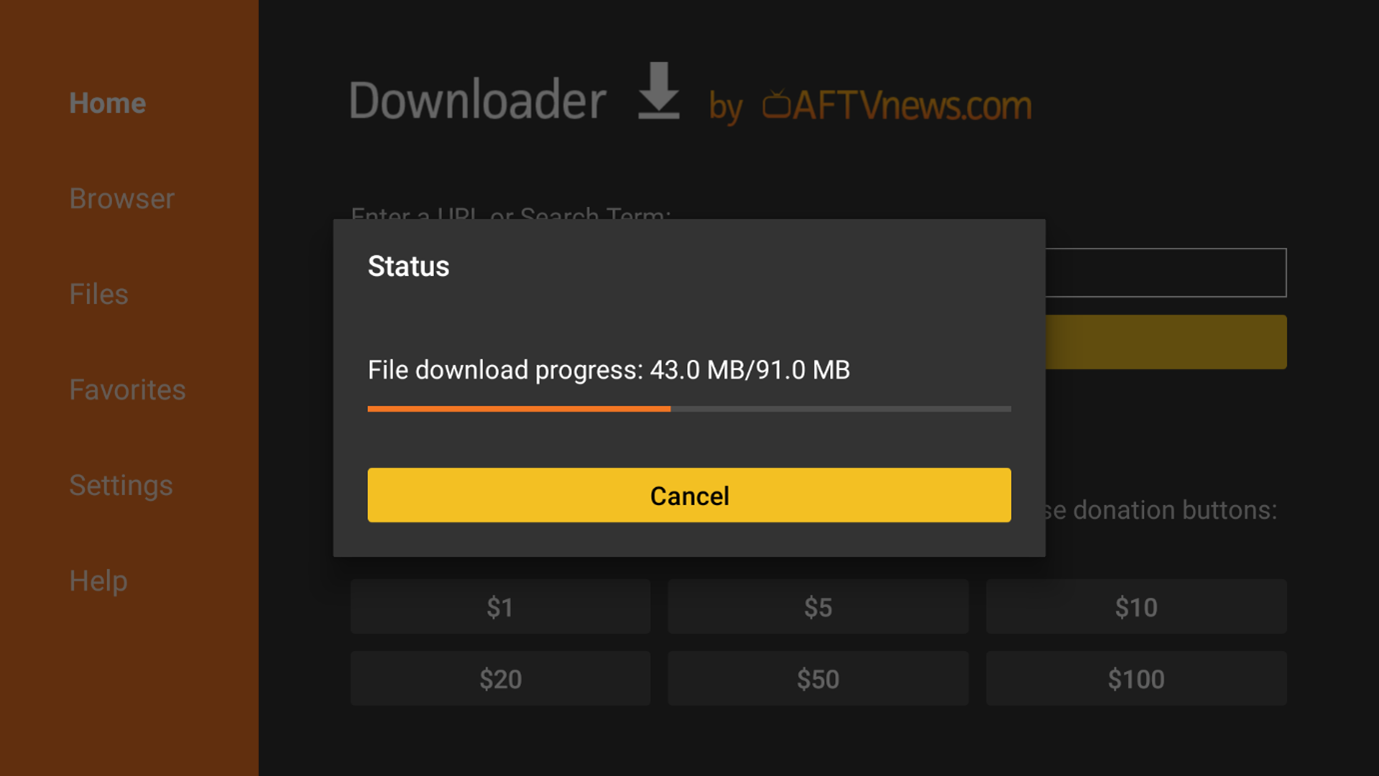
Step 9: If you entered the URL correctly the download will begin. Wait until the download is finished.
Step 10: Select Settings

Step 11: Select Install unknown apps.

Step 12: Turn the install unknown apps ON for the downloader application.

Step 13: Press the back button on the remote (2) times, then click the install button

Step 14: On the next screen, click Install and install the file you just downloaded

Step 15: Once it finishes installing, click on Done

Step 16: This will take you back to Downloader. Click Delete.

Step 17: Click Delete again to confirm.

Step 18: Return to the home screen menu (press the home button on your remote).
Step 19: Hold down on the home button on the remote until a new screen appears. Scroll to the right and click Apps.

Step 20: Scroll to the bottom to hover over Dtech TV and click options (3 horizontal lines), then choose “Move to Front” from the list.

Step 21: Click the home button on your remote and then select the Dtech TV app icon.
Step 22: Loading screen please wait

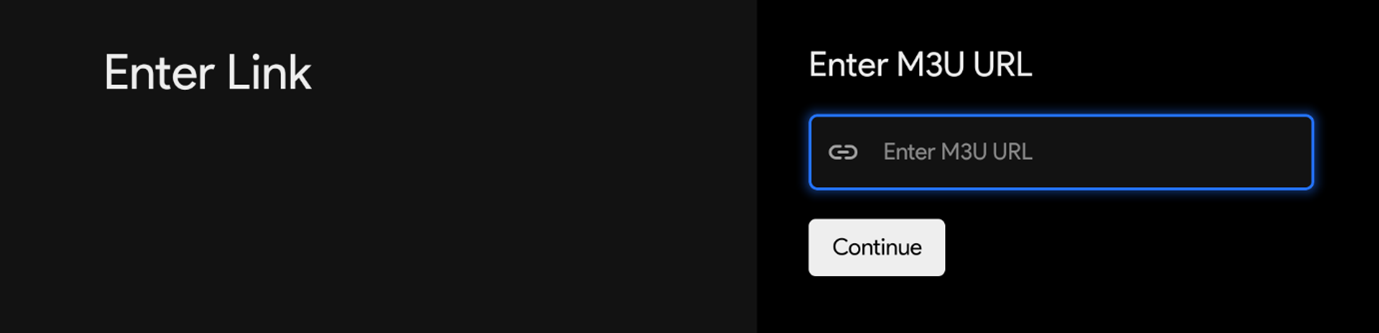
Step 23: Use your remote to enter your M3U URL link in the [M3U URL] field (Top line)
Your Password is case-sensitive!
Step 24: After entering your M3U URL link click CONTINUE

Step 25: After entering your Password click the LOGIN Button.

Enjoy!
* We highly recommend you turn the install unknown apps on for the Dtech TV application, this will ensure that your Dtech TV app stays updated.
